Plugin: Print Shortcuts

This plugin creates an HTML file of your shortcuts in your browser. You can select 1 or more columns, but I find 1, 2, or 3 work the best. Look for Print Shortcuts under the Plugins menu.

Download printkeys.rb

Plugin: Template Utilities

This script adds 2 menu items to the File menu: Save as Template, and New from Template. It allows the user to quickly create and use templates.

  • Save as Template saves the current model as a template in the templates folder.
  • New from Template lets you choose a template, and starts a new model using the template. The selected template becomes the default template.

Instructions
  1. Download template_utils.rb
  2. Move the file into your Sketchup.Plugins folder, and restart SketchUp

Plugin: Zoom Selection

Adds 2 menu items to the Camera Menu: Zoom Selection, and Zoom Out.
  • Zoom Selection zooms to the selected entities. If nothing is selected, zoom to the model extents.
  • Zoom Out zooms out by a factor of 2.
Download jf_zoom_selection.rb

I have set up 2 key shorcuts: 'z' for Zoom Selection, and 'Shift-Z' for Zoom Out.

Developers

Script writers can call these methods using the following syntax:
require "zoom_selection.rb"
JF::zoomSelection
JF::ZoomOut(factor)

Plugin: Point at Intersection

Select 2 lines, then right-click and select Point at Intersection. Adds a Guide Point at the intersection of the lines.

Instructions

1. Download point_at_intersection.rb
2. Move the file to your Sketchup/Plugins folder
3 Restart SketchUp


Plugin: 3D Warehouse Quick Search


Allows the user to enter search terms, and opens a web browser to the search results from within SketchUp.


Instructions
  1. Download 3dw_search.rb
  2. Move the file into your Sketchup/Plugins folder.
  3. Restart SketchUp.
  4. A new item named Search 3DW appears under the Help Menu.
  5. Assign a shortcut key for fast access.

Plugin: Arc Centerpoint

Right-click an arc (or circle) to insert a Guide Point at the arc's center.

Installation
  1. Download: arc_centerpoint.rb
  2. Move the file into your Sketchup/Plugins directory, then restart SketchUp
  3. Right-click an arc and select Arc Centerpoint. Click on the edge, not the face.

Mover Pugin Updates

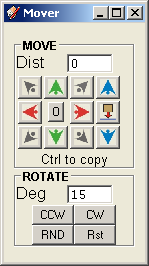
I have been making progress on mover.rb. You can see the latest interface at the left.

Notice I have removed the Copy checkbox - copying is now done by holding the Ctrl key while pressing a direction. All directions have keyboard shortcuts also (arrow keys.) You can use the Ctrl key along withe the arrow keys to move and copy an entity very quickly.

The Drop button drops selected entities to the XY plane. However, if you hold the Ctrl key, entities get dropped onto any surface below. Good for dropping trees onto a hillside, for example. Credit for the idea goes to Octavian 'TBD' Chis's Drop.rb. Dropping and rotating operate on multiple entities.

I replaced the fixed rotate amounts with a text entry box. Rotating still occurs around the Z axis but you can rotate clock-wise, or counter clock-wise. RND will rotate some random amount between 0 and 360. Rst rotates it back to normal (world axes.) I'd like some good icons, too.
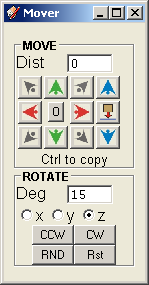
I'm still considering other ideas from user's feedback such as:
  • being able to select an axis to rotate around. This is likely to happen, see right.
  • if the selection contains a single construction line, use the line as the axis of rotation.
  • use the Ctrl key to be able to slide a selection up against a wall, similar to dropping onto a surface, only horizontally.
  • add a repeat amount (for multiple copies.)
  • copy in 3 dimension at once. (array copy)
  • align camera so view matches mover layout (for when left is right and right is left)
I'm trying to find a balance between functionality and ease-of-use. I want to keep the window small while providing all the functionality that's practical.

Thanks again for visiting my blog and using mover.rb. Comments are always appreciated.

Popular Posts (Last 30 Days)